How to Open the Audio System on a Ford Transit Custom
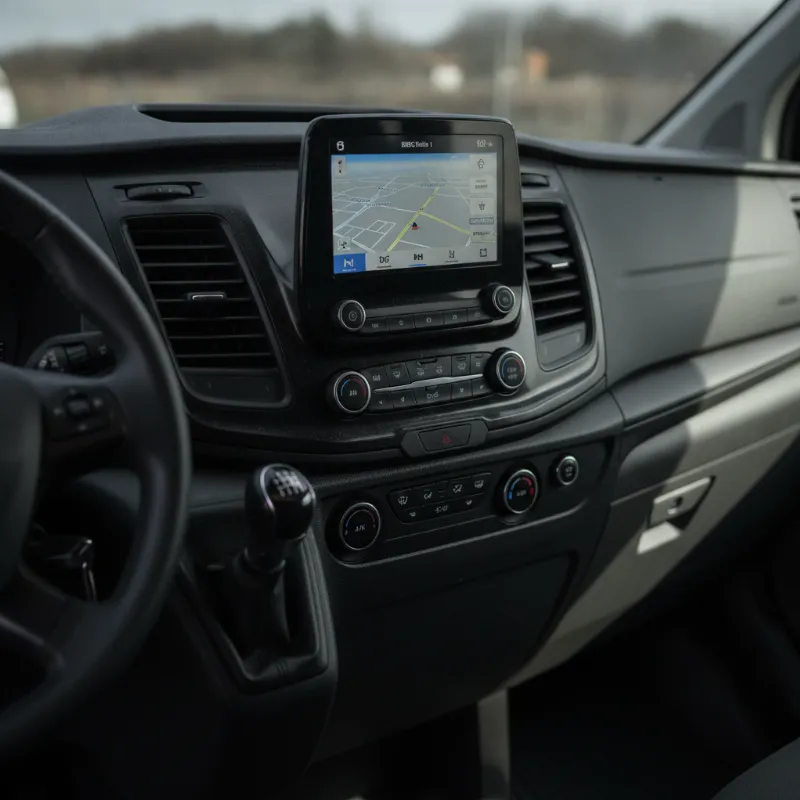
Where the Audio Controls Are on a Ford Transit Custom
The Ford Transit Custom keeps its audio and infotainment controls in two main places, which makes life easier once you know where to look. The primary set of controls sits on the centre console, built into or just below the SYNC touchscreen (or the smaller display on earlier trim levels). This is where you'll find the power/volume knob, tuning dial, and the shortcut buttons for radio, media, phone and navigation.
The second set of controls lives on the steering wheel itself, giving you volume, track skip and voice control access without taking your hands off the wheel. Depending on the age of your Transit Custom, you may have SYNC 1, SYNC 3, or the newer SYNC 4 system — the layout differs slightly, but the core buttons are in the same general area. On vans fitted with the digital instrument cluster, some audio information is also mirrored in front of the driver.
How to Turn On the Audio System Step by Step
Turning on the audio system in a Transit Custom is straightforward, but there are a couple of things worth knowing before you press anything. First, put the ignition into at least accessory mode by turning the key one click, or by pressing the start button once without your foot on the clutch or brake (on keyless models). This powers up the head unit's electronics so it can respond to input.
Using the Power Button on the Head Unit
On most Transit Custom models, the power button is combined with the volume knob on the left-hand side of the head unit. Give it a firm press — not a twist — and the display should light up within a second or two. If the system was previously in standby, it will resume playing whatever was last active, whether that was DAB radio, FM, Bluetooth audio or USB. To turn the audio off again without switching off the ignition, simply press the same knob once more. Rotating it clockwise increases the volume, and anti-clockwise decreases it.
If your van has SYNC 3 or SYNC 4, the touchscreen will boot into the home menu after a few seconds, showing tiles for Audio, Phone, Navigation and Settings. Tap Audio to bring up source options such as AM, FM, DAB, Bluetooth Audio, USB and Apple CarPlay or Android Auto if paired.
Using the Steering Wheel Controls
The steering wheel controls are handy when you're already driving. The volume rocker on one side (usually the left) turns the audio up and down, and pressing it briefly can also unmute the system if it's been silenced. On the other side, the track skip buttons let you jump forward or back through radio presets or media tracks. There's typically a MODE or source button too, which cycles through radio, Bluetooth and USB inputs without needing to touch the screen. The voice control button — marked with a small speech bubble icon — is another quick way to bring the system to life; press it and say "audio on" or "play radio".
Connecting Your Phone via Bluetooth or USB
Once the audio system is running, connecting a phone is the next logical step. For Bluetooth, tap the Phone or Settings tile on the touchscreen and select "Add Phone" or "Pair Bluetooth Device". On your handset, open the Bluetooth menu, look for "SYNC" in the list of available devices, and confirm the matching PIN that appears on both screens. Once paired, the van will usually reconnect automatically every time you get in.
USB is even simpler — plug your phone into one of the USB ports (typically found under the centre stack or in the front of the armrest cubby) using the correct cable. If you have SYNC 3 or later, you can also launch Apple CarPlay or Android Auto from a wired connection, which mirrors your maps, messages and music apps onto the van's screen. Newer SYNC 4 systems support wireless CarPlay and Android Auto once initial pairing is done.
Troubleshooting: Audio Won't Turn On
If the audio system refuses to power up, don't panic — it's rarely a serious fault. Start with the basics: check that the ignition is actually in accessory or run mode, because the head unit won't respond in "off". Next, look at the volume level, as it's easy to have muted the system without realising. If the screen is completely blank, try holding the power button for around ten seconds to force a soft reset — this often clears minor software glitches on SYNC systems.
Check the fuse box, too. There's a dedicated audio/infotainment fuse in both the engine bay fuse panel and the interior fuse box (usually behind a cover in the driver's footwell). A blown fuse is a common cause of a totally dead radio. If you've recently disconnected the battery, the system may also need a few minutes to reinitialise, and in some cases will ask for a security code — this is stored in your owner's wallet or can be retrieved by a Ford dealer using the VIN. If none of that helps, it's worth having an auto-electrician check the wiring loom behind the head unit for a loose connector.
Getting the Most From Your Transit Custom Cab
The Transit Custom cab is genuinely one of the better places to spend a working day, and the audio system is a big part of that. Take a few minutes to set up your DAB presets, pair your phone properly, and explore the equaliser settings in the audio menu — small tweaks to bass and treble make a real difference given the size of the cab. If you use the van for long motorway runs, having Bluetooth calling set up correctly is well worth the effort, and voice control means you can keep both hands on the wheel.
If you're still shopping around and haven't picked your van yet, browse our Ford Transit Custom vans to see which trim levels and infotainment versions are currently in stock. The differences between SYNC 1, SYNC 3 and SYNC 4 are worth understanding before you buy, especially if features like CarPlay or a larger touchscreen matter to you day-to-day.
FAQs
How do you turn on and open the audio/infotainment system in a Ford Transit Custom?
Turn the ignition to accessory mode (one click of the key, or one press of the start button without pressing the clutch or brake), then press the volume/power knob on the left of the head unit. The display will light up within a couple of seconds and resume the last audio source. You can also use the voice control button on the steering wheel and say "audio on" to bring it up hands-free.
Why won't my Transit Custom radio turn on at all?
The most common causes are the ignition not being in accessory mode, the volume being muted, or a blown audio fuse in the interior or engine bay fuse box. Try a soft reset by holding the power button for around ten seconds. If the battery has recently been disconnected, the system may need to reinitialise or may ask for a security code, which a Ford dealer can retrieve using your VIN.
How do I connect my iPhone or Android phone to a Ford Transit Custom?
For Bluetooth, open the Settings or Phone menu on the SYNC screen, select "Add Phone", then on your handset choose SYNC from the Bluetooth list and confirm the matching PIN. For a wired connection, plug the phone into the USB port using its original cable — SYNC 3 and SYNC 4 will also launch Apple CarPlay or Android Auto automatically. Newer SYNC 4 systems support wireless CarPlay and Android Auto once initial pairing is complete.
Does the Ford Transit Custom have DAB radio?
Yes, DAB digital radio is standard on the vast majority of Transit Custom vans built in recent years. You can access it by pressing the Radio or Audio button on the head unit and selecting DAB as the source, then scanning for stations and saving your favourites as presets.
Which SYNC system does my Transit Custom have?
Older Transit Customs use SYNC 1 with a small monochrome display and physical buttons. From around 2018 onwards, SYNC 3 was fitted with an 8-inch colour touchscreen and CarPlay/Android Auto support. The latest generation Transit Custom uses SYNC 4 with a much larger portrait touchscreen and wireless smartphone mirroring. Checking the screen size and layout is the quickest way to tell which one you have.